Jupyterlab 的安装与配置
下载并安装 Anaconda
Anaconda 是目前最方便的 Python 发行版,搭载了很多我们终将必用的软件包,除了 Python 之外,还有 R 语言,还包括 Pandoc,NumPy,SciPy,Matplotlib…… 等等。
无论是图形化界面安装,还是命令行界面安装,建议都把 Anaconda 安装在本地用户目录内,~/。请下载并安装 Python 3.x 的版本。
图形化界面安装的教程,官方的很详细,各个操作平台的说明都有:
在 MacOS 的 Terminal 命令行下,可以直接下载并安装:
cd ~/Downloads/
wget https://repo.anaconda.com/archive/Anaconda3-2018.12-MacOSX-x86_64.sh
chmod +x Anaconda3-2018.12-MacOSX-x86_64.sh
./Anaconda3-2018.12-MacOSX-x86_64.sh安装到最后一步,会问你是否要安装微软出品的 Visual Studio Code,选择 yes —— 反正以后你的电脑上会不止一个文本编辑器…… 以后你可能还会安装的文本编辑器包括 SublimeText, Atom 等等。
安装完毕之后,打开 Terminal(Windows 系统需要打开之前安装的 Anaconda Prompt 输入),继续安装几个组件:
conda update conda
conda update anaconda
conda install -c conda-forge nodejs
conda install -c conda-forge jupyterlab # 这是用来升级 jupyter lab 到最新版的方法安装完毕之后,可以看看各个你将要用到的可执行命令都在什么地方,用 which 命令(windows下用 where 命令):
which python
python --version
which node
node -v
which jupyter
jupyter lab --version
jupyter notebook --version
which pip
pip --version
第一次启动 Jupyter lab
打开 Terminal,cd 到你想打开 Jupyter lab 的目录(就是你保存 ipynb 文件的地方,以便在 Jupyter lab 中打开、浏览、编辑 ipynb 文件),在这里以用户根目录为例 ~/:
cd ~
jupyter lab
此时的 Terminal 窗口不能关闭,否则 Jupyter lab 就停止运行了 —— 就将它放在那里。
随后会有个浏览器打开,指向 http://localhost:8888/lab? —— 你就看到 Jupyter lab 的操作界面了。
目前,Jupyter lab 和 Jupyter notebook 是并存的,虽然前者是后者的下一步替代者。如果你依然习惯于使用 Jupyter notebook,那么,在浏览器中指向 http://localhost:8888/tree? 看到的就是 Jupyter notebook.
配置 Jupyter lab
打开 Terminal,输入以下命令:
jupyter lab --generate-config这会在 ~/.jupyter/ 目录下生成一个 jupyter_notebook_config.py 文件。
cd ~/.jupyter
code jupyter_notebook_config.py
上面的 code 命令,需要你已经安装 Visual Studio Code,并且在已经在其中设置了 Install 'code' command in PATH。参见附录 Visual Studio Code 的安装与配置
事实上,你可以用你喜欢的任何编辑器打开 ~/.jupyter/jupyter_notebook_config.py 文件。
文件内容很长,有空可以仔细看。可以直接将以下内容拷贝粘贴到文件底部,根据需求修改:
#c.NotebookApp.token = ''
#c.NotebookApp.open_browser = False
#c.NotebookApp.notebook_dir = '~/'
#c.NotebookApp.default_url = '/tree'逐条解释一下:
c.NotebookApp.token = ''
每次打开 jupyter,它都会给你生成一个新的 Token —— 这是安全策略。但是,如果你只是在自己的电脑上使用,那么,这就给你制造了麻烦,因为若是你想同时用另外一个浏览器打开它,那你就需要从 Terminal 里拷贝那个 Token 出来。所以,你可以在配置文件里直接把它设置为空。
c.NotebookApp.open_browser = False
每次你执行 jupyter lab 或者 jupyter notebook 命令的时候,它都会使用系统默认浏览器。
每个人的习惯不一样。比如我,会想到用一个平时不怎么用的浏览器专门用在 Jupyter 上,这样会防止自己在关闭其它网页的时候不小心把 Jupyter 关掉…… 那我就会把这项设定为 False。
c.NotebookApp.notebook_dir = '~/'
在 Terminal 中执行 jupyter 命令的时候,它默认是在你当前所在的工作目录打开 jupyter,这同样是出于安全考虑。但是,如果你只是在自己的电脑上使用,且只有自己在使用,那么莫不如直接把它设置成 ~/,即,你的用户根目录,这样会很方便地访问各种地方的文件……
c.NotebookApp.default_url = '/tree'
这一项留给那些依然习惯于使用 jupyter notebook 的人,这样设置之后,即便是输入 jupyter lab 命令,打开的还是 jupyter notebook。
在 Terminal 里常用的与 Jupyter 有关的命令有:
jupyter lab
jupyter lab --version
conda install -c conda-forge jupyterlab # 这是用来升级 jupyter lab 到最新版的方法
jupyter notebook list                   # 查看正在运行的 jupyter lab/notebook
jupyter notebook stop                   # 停止 jupyter lab/notebook 服务
将 Jupyter lab 配置成系统服务
如果,你厌烦每次都要跑到 Terminal 里启动 Jupyter lab,可以把它配置成系统服务,每次开机启动它就自动运行。而你需要做的只不过是直接从浏览器中访问 http://localhost:8888/。
code ~/Library/LaunchAgents/com.jupyter.lab.plist这条命令会让 Visual Studio Code 创建 ~/Library/LaunchAgents/com.jupyter.lab.plist 文件并打开。
在其中拷贝粘贴以下内容,注意,要把其中的 your_username 修改为你的用户名:
<?xml version="1.0" encoding="UTF-8"?>
<!DOCTYPE plist PUBLIC "-//Apple//DTD PLIST 1.0//EN" "http://www.apple.com/DTDs/PropertyList-1.0.dtd">
<plist version="1.0">
<dict>
	<key>Label</key>
	<string>local.job</string>
	<key>ProgramArguments</key>
	<array>
		<string>/Users/your_username/anaconda3/bin/jupyter</string>
		<string>lab</string>
		<string>--no-browser</string>
		<string>--notebook-dir=/Users/your_username/</string>
	</array>
	<key>RunAtLoad</key>
	<true/>
	<key>StandardErrorPath</key>
	<string>/tmp/local.job.err</string>
	<key>StandardOutPath</key>
	<string>/tmp/local.job.out</string>
</dict>
</plist>
如果之前在 jupyter_notebook_config.py 文件里已经设置过
c.NotebookApp.open_browser = False
c.NotebookApp.notebook_dir = '~/'那么这两行就可以不要了:
		<string>--no-browser</string>
		<string>--notebook-dir=/Users/your_username/</string>
而后在 Terminal 里执行:
launchctl load ~/Library/LaunchAgents/com.jupyter.lab.plist如果你想重新启动这个服务,那么执行:
launchctl unload ~/Library/LaunchAgents/com.jupyter.lab.plist
launchctl load ~/Library/LaunchAgents/com.jupyter.lab.plist
关于 Jupyter lab themes
对中文用户来说,Jupyter 的默认字号有点过小,阅读起来不是很舒适。但最佳的方案不是去寻找合适的 themes,而是直接使用支持 Stylus 这类终端 CSS 定制插件的浏览器,Chrome/Firefox/Opera 都支持 Stylus 插件。
我用的 Stylus 定制 CSS 是这样的:
a {color: #2456A4 !important;}
strong {color:#6392BF;}
em {color: #A9312A; font-style: normal !important;}
table {font-size: 90% !important;}

#jp-main-dock-panel {background-color: #f9f9f9;}
.jp-RenderedHTMLCommon {font-family: "Yuanti SC"; font-size: 100%;}
.jp-Notebook {background-color: #fbfafa;}
.CodeMirror, .jp-RenderedHTMLCommon pre {font-size: 90%;}
.jp-RenderedHTMLCommon pre {
    padding: 10px 25px;
    background-color: #fafafa;
    border-left: 4px solid #dadada;
    border-radius: 10px;
}

.jp-RenderedHTMLCommon pre code {
    background-color: #fafafa;
}

.jp-RenderedHTMLCommon h1 code,
.jp-RenderedHTMLCommon h2 code,
.jp-RenderedHTMLCommon h3 code,
.jp-RenderedHTMLCommon h4 code,
.jp-RenderedHTMLCommon p code,
.jp-RenderedHTMLCommon li code,
.jp-RenderedHTMLCommon blockquote p code,
.jp-RenderedHTMLCommon blockquote li code,
.jp-RenderedHTMLCommon td code {
    background-color: #f6f6f6;
    font-size: 90%;
    color:#2e2e2e;
    padding: 4px 4px;
    margin: 0 8px;
    box-shadow: 0px 1px 2px 0px rgba(0,0,0,0.2);
    border-radius: 4px;
}
这样就相当于我把 JupyterLab Light 这个 Theme 稍微 Tweak 了一下。
另,我写的内容里,为了重点突出,特别定制了 strong 和 em 两个元素的显示,让它们以不同的颜色展示;又因为中文并不适合斜体展示,所以,把 em 的 font-style 设定为 normal……
安装插件
Jupyter notebook 经过很多年的发展,现在有很多扩展插件,但也有其中一些并不兼容最新的 Jupyter lab。不过,刚开始的时候用不着那么多插件,你只用其中的两个就足够开始了:
首先在用快捷键 ⌘ , 打开 jupyter lab 的 Advanced Settings,在 Extension Manager 中,添加 User Overrides:
{
    "enabled": true
}
而后在 Terminal 执行以下命令安装插件:
jupyter labextension install @jupyterlab/toc
jupyter labextension install @ryantam626/jupyterlab_sublime
jupyter lab build
toc 插件,自动将 ipynb 文件中的标题转换成目录。

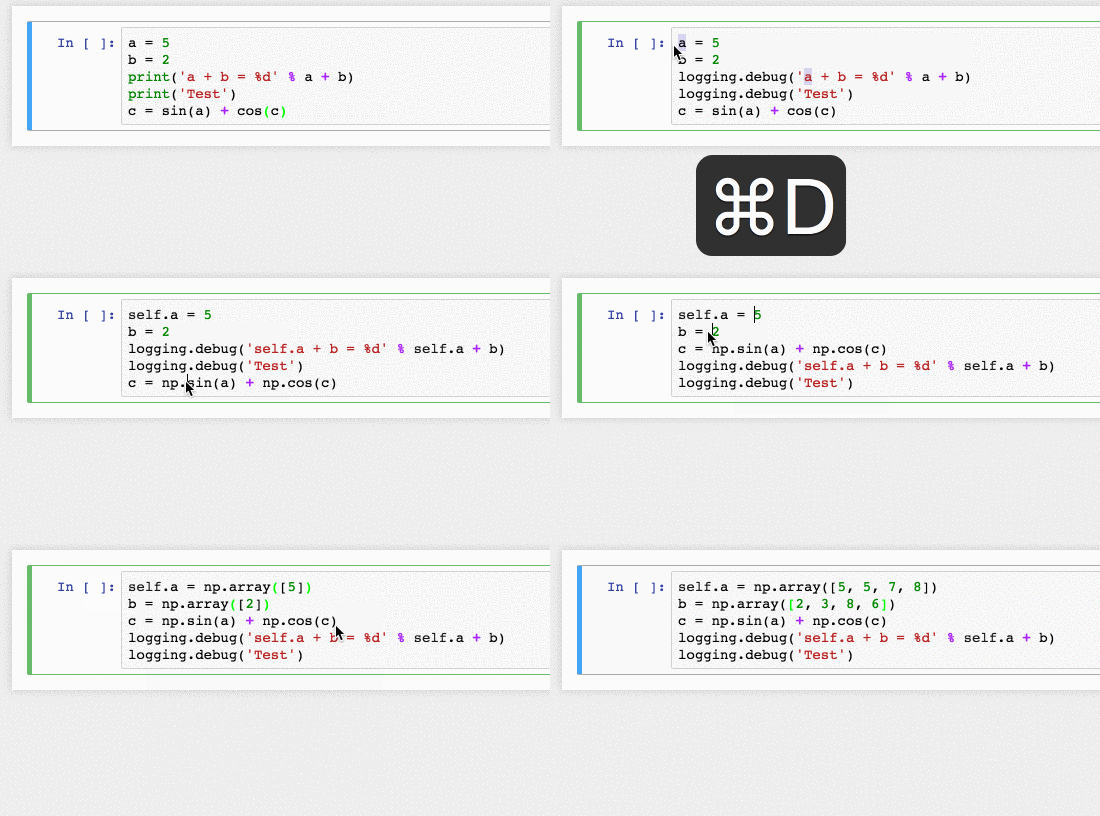
jupyterlab_sublime 则可以让你在 Jupyter lab 的 cell 中,使用跟 SublimeText 一样的快捷键,比如 ⌘ D 能够多选其它与当前选中内容一样的内容;比如 ⌘ 加鼠标点击,可以生成多个可编辑点……
常用快捷键
以下是 MacOS 下 Jupyter lab 最常用的快捷键。快捷键在两种模式下执行,进入编辑模式用 ⏎,回到命令模式用 ⎋(ESC)。
另外,代码编辑过程中需要安装 Jupyterlab 插件 @ryantam626/jupyterlab_sublime 之后才能使用 “多行同时编辑功能”。
| 快捷键 | 说明 | 模式 |
|
---- |
|
- |
|
ESC| 从编辑模式回到命令模式 | 命令 | |A| 在当前 Cell 之前插入一个 Cell | | |B| 在当前 Cell 之后插入一个 Cell | | |D,D| 连续按两次d键,删除当前 Cell | | |Y| 将当前 Cell 设置为 Code Cell | | |M| 将当前 Cell 设置为 Markdown Cell | | |^ ⇧ -| 将当前 Cell 拆分为两个 | 编辑 | |⇧ M| 合并选中的 Cells | | |⇧ Jor⇧ ↓| 连续向下选中 Cells | | |⇧ Kor⇧ ↑| 连续向上选中 Cells | | |⇧ ⏎or^ ⏎| 运行当前 Cell 中的代码 | | |⇧ L| 显示/隐藏代码行号 | | |⏎| 当前 Cell 进入编辑模式 | 编辑 | |⇥| 自动补全代码 | | |⇧ ⇥| 呼出当前光标下词汇的 Docstring | | |⌘ D| Sublime Keymap: 选中下一个相同字符串 | | |⇧ ⌘ L| Sublime Keymap: 在选中的行内启动多行同时编辑 | | |⌘ + Mouse Click| 生成下一个可同时编辑的光标点 | |
增加一些必要的快捷键
在 Settings > Keyboard Shortcuts 中,可以设定一些常用但系统并未给出的快捷键:
{
	"notebook:move-cells-down-down": {
		"command": "notebook:move-cell-down",
		"keys": [
		"Alt J"
		],
		"selector": ".jp-Notebook:focus",
		"title": "Move Cells Down",
		"category": "Notebook Cell Operations"
	},
	"notebook:move-cells-down-up": {
		"command": "notebook:move-cell-up",
		"keys": [
		"Alt K"
		],
		"selector": ".jp-Notebook:focus",
		"title": "Move Cells Down",
		"category": "Notebook Cell Operations"
	},
	"notebook:enable-output-scrolling": {
		"command": "notebook:enable-output-scrolling",
		"keys": [
		"S"
		],
		"selector": ".jp-Notebook:focus",
		"title": "Enable output scrolling",
		"category": "Notebook Cell Operations"
	},
	"notebook:disable-output-scrolling": {
		"command": "notebook:disable-output-scrolling",
		"keys": [
		"Alt S"
		],
		"selector": ".jp-Notebook:focus",
		"title": "Enable output scrolling",
		"category": "Notebook Cell Operations"
	}
}
这样就添加了 4 个快捷键:
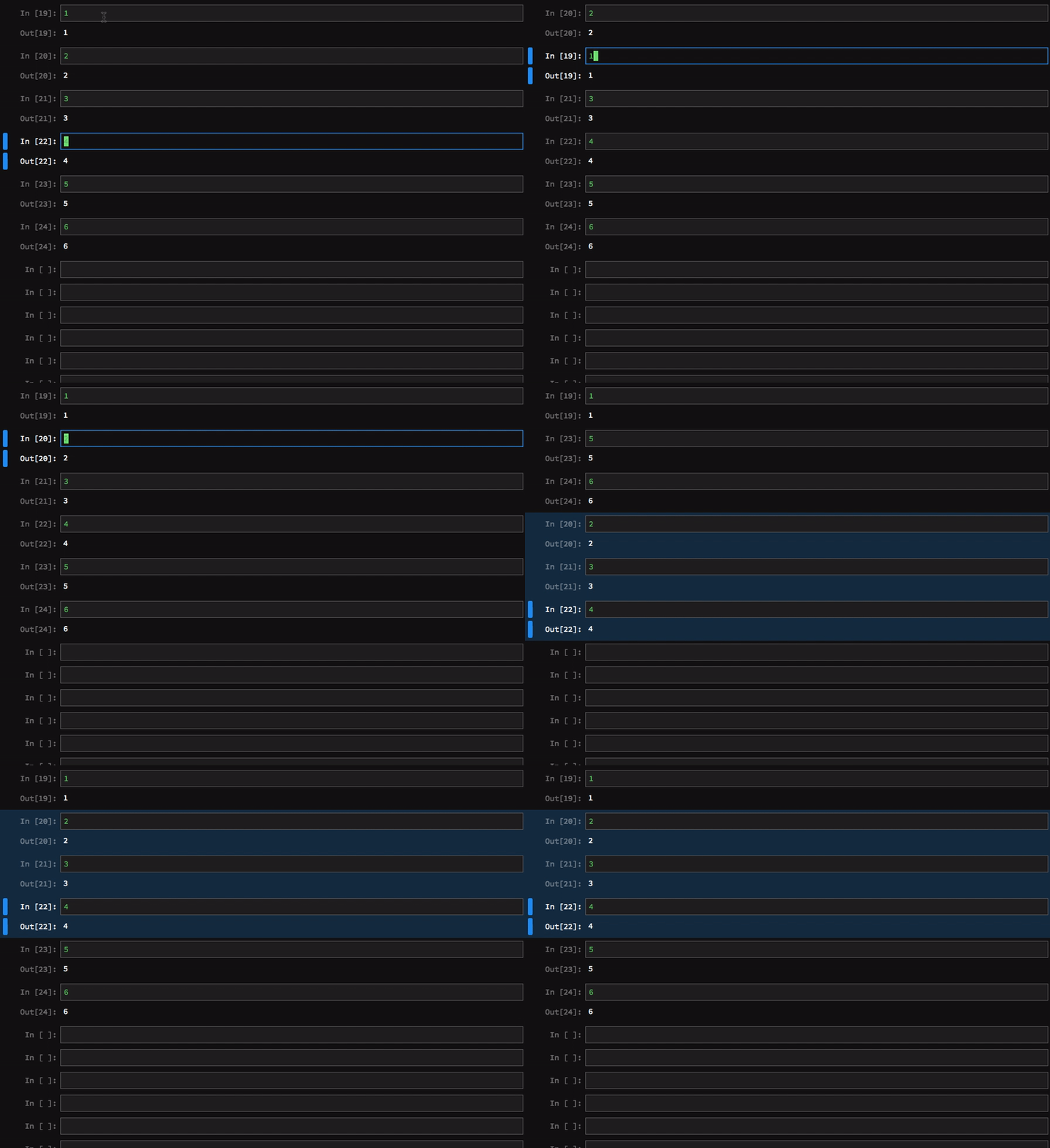
⌥ J: Move selected cells down⌥ K: Move selected cells upS: Enable output scrolling⌥ S: Disable output scrolling
比如 Move Selected cells up:
输出所有变量内容
默认情况下,Code Cell 只输出最后一个可以被 evaluate 的值,用 _ 代表之前刚刚被 evaluate 的值。
[1, 2, 3][1, 2, 3]_ # 执行完上面的 Cell,试试这个 Cell; 而后执行完下面的 Cell 之后再重新执行一次当前这个 Cell[1, 2, 3](1, 2, 3)
{1, 2, 3}{1, 2, 3}于是,为了显示最近 evaluate 的多个值,我们总是不得不使用很多的 print()……
如果觉得这事比较烦的话,可以在 Cell 最上面写上:
from IPython.core.interactiveshell import InteractiveShell
InteractiveShell.ast_node_interactivity = "all"如果还想更省事一点,就把这个设置写入配置文件:
c.InteractiveShell.ast_node_interactivity = "all"from IPython.core.interactiveshell import InteractiveShell
InteractiveShell.ast_node_interactivity = "all"
(1, 2, 3)
{1, 2, 3}(1, 2, 3)
{1, 2, 3}魔法函数
在 Code Cell 里,可以运行一些 “魔法函数”(Magic Functions),这是秉承了 IPython 的特性。绝大多数在 IPython 里能够使用的魔法函数在 Jupyterlab 里都可以直接使用。完整的 IPython 魔法函数请参照:
https://ipython.readthedocs.io/en/stable/interactive/magics.html
Jupyterlab 里较为常用的魔法函数整理如下:
| 魔法函数 | 说明 |
|
|
|
| %lsmagic | 列出所有可被使用的 Jupyter lab 魔法函数 |
| %run | 在 Cell 中运行 .py 文件:%run file_name |
| %who | 列出所有当前 Global Scope 中的变量;类似的还有:%who df,%whos |
| %env | 列出当前的环境变量 |
| %load | 将其他文件内容导入 Cell,%load source,source 可以是文件名,也可以是 URL。|
| %time | 返回 Cell 内代码执行的时间,相关的还有 %timeit |
| %writefile | 把 Cell 的内容写入文件,%write file_name;%write -a file_name,-a 是追加 |
| %matplotlib inline | 行内展示 matplotlib 的结果 |
| %%bash | 运行随后的 shell 命令,比如 %%bash ls;与之类似的还有 %%HTML,%%python2,%%python3,%%ruby,%%perl…… |
桌面版 Jupyter App
Nteract
支持各个操作系统,很好看、很好用。有一个小缺点是,不支持 input() 函数的调用。

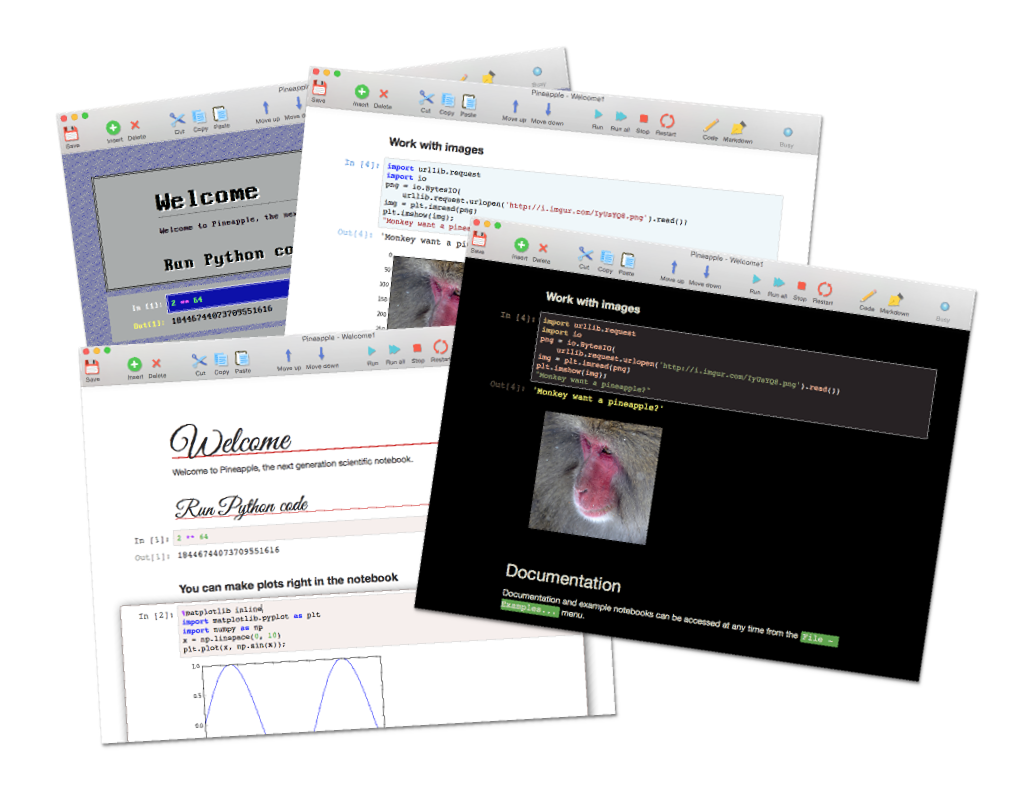
Pineapple
只支持 MacOS,也很好用 —— 缺点就是很难看……